Goals
Griply connects your big ambitions with the daily actions that make them happen. Goals are at the heart of this system. They turn your vision into actionable steps and help you track meaningful progress over time.
If you’re completely new to Griply’s structure, start with Creating & Planning Your First Goals first.
Creating a Goal
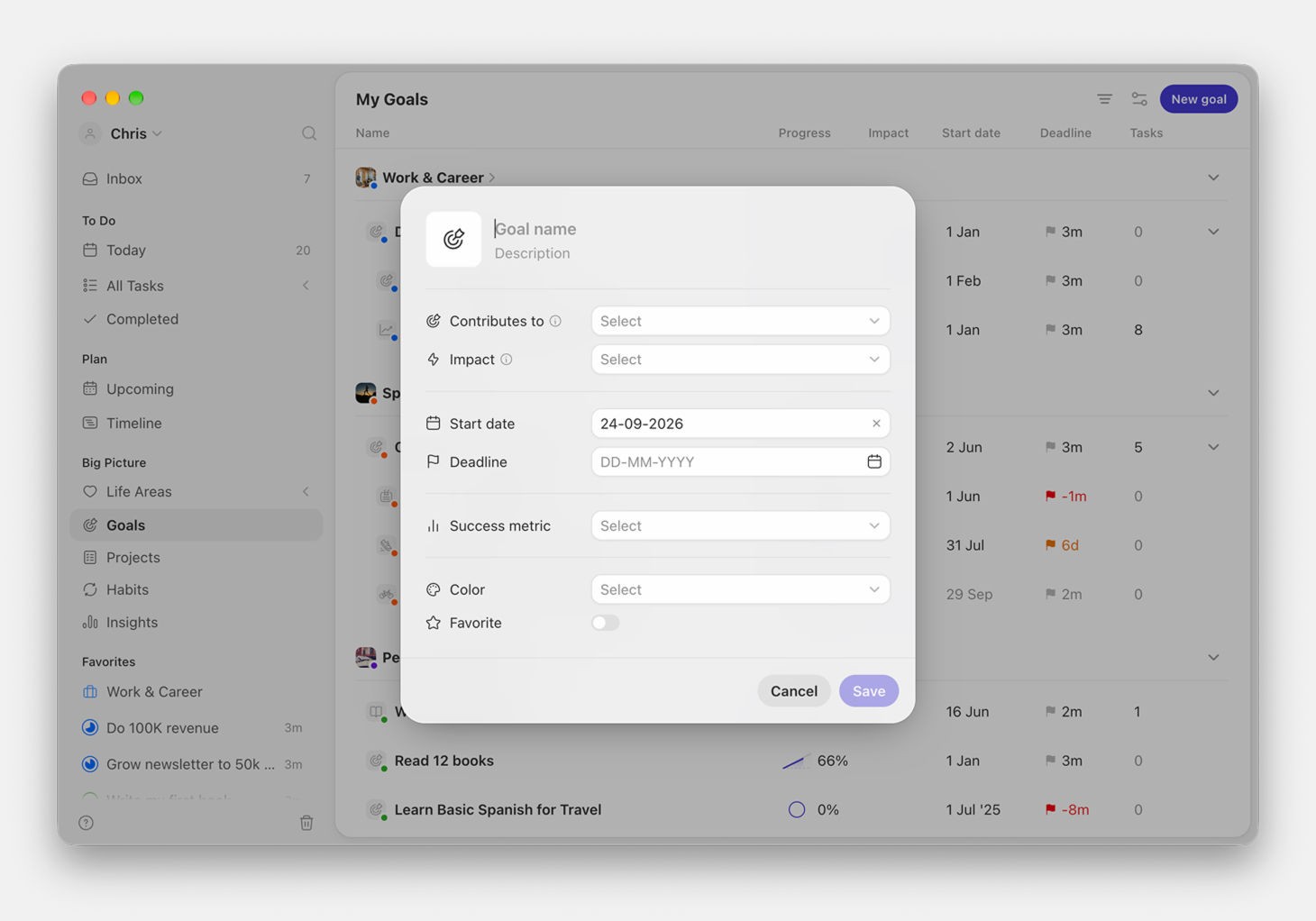
To create a new goal:
Go to the Goals tab in the sidebar.
Click + Add goal in the top-right corner.
Give your goal a title. Start with an action verb for clarity, e.g. “Run a marathon” or “Write my first eBook.”
Set what the goal contributes to, a life area or a bigger goal, so you always see why it matters. Learn more in Setting Up Your Life Areas.
(Optional) Add a description to define what success looks like or remind yourself why this matters.
Choose a color and icon. By default, your goal inherits its life area color, but you can override this to visually group related goals.
Set a start date and, if relevant, a deadline.
Choose a success metric to track progress (explained in detail below).
Success Metrics
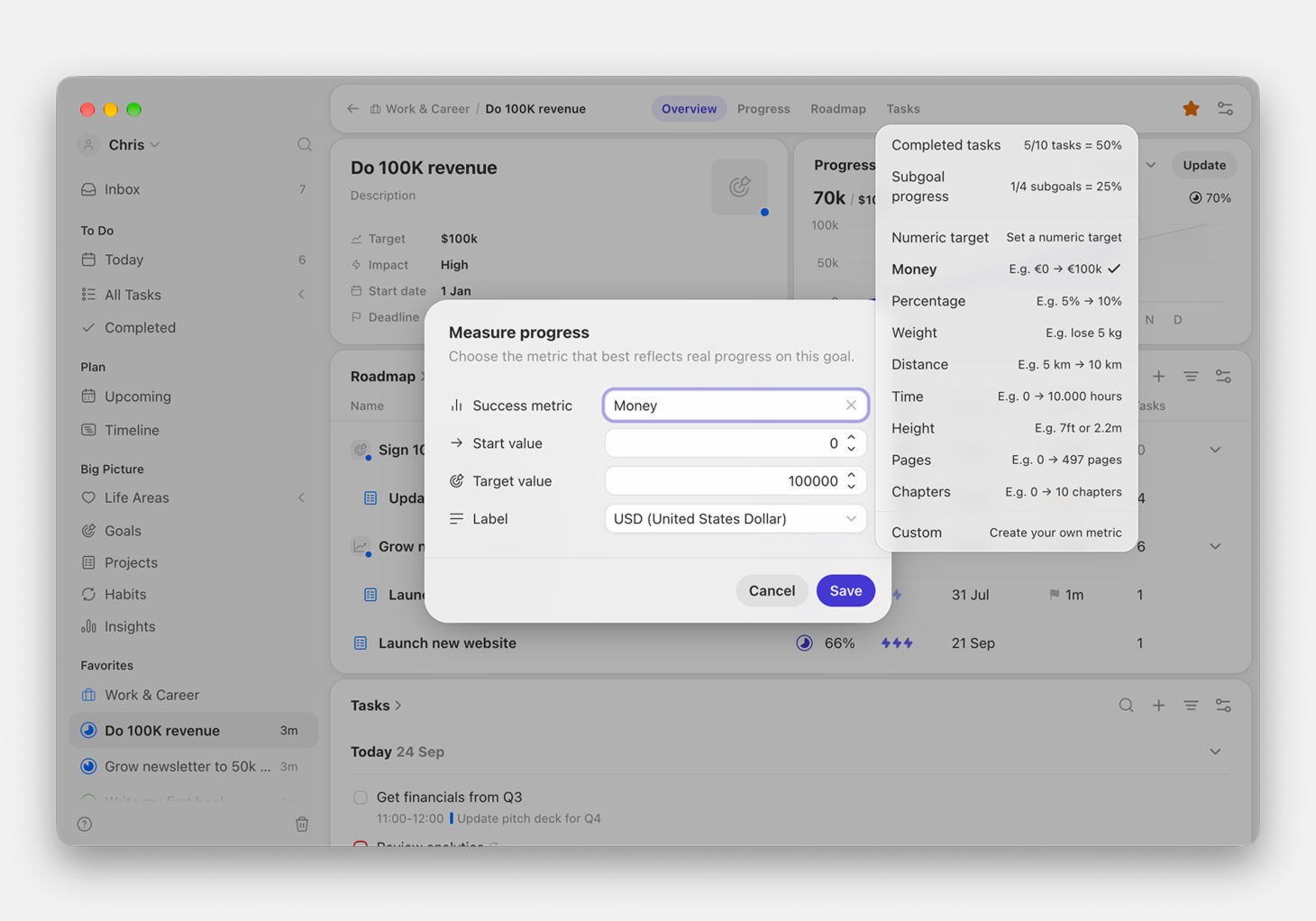
A success metric makes your goal measurable, and measurable is the difference between being busy and making progress. It’s how you know your effort is actually moving the outcome, not just filling your to-do list.
The strongest metrics log a real outcome, like this month’s revenue, your current weight, or total distance run. You log the number and Griply charts it against your target.
You can also let progress roll up from completed subgoals or tasks. But a task count measures effort, not the result, so it’s the weakest signal, and usually a sign the work belongs in a project. Set the metric when you create a goal, change it anytime, and track it on the Insights Dashboard.
For more, see Tracking Your Progress.
Success Metric | When to Use It | Example Goal |
|---|---|---|
Completed tasks | Track progress based on finished tasks | “Write my thesis” |
Subgoal progress | Track progress via milestones | “Expand into 3 new markets” |
Numeric target | Count completions manually | “Meditate 100 times” |
Money | Financial outcomes | “Save €10,000” |
Percentage | Measure relative improvement | “Grow revenue by 15%” |
Weight | Fitness-related goals | “Lose 5kg” |
Distance | Travel or fitness | “Run 100km in 3 months” |
Time | Hours spent on something | “Study 100 hours for an exam” |
Pages | Reading or writing | “Read 20 books” |
Chapters | Structured learning | “Complete 10-course chapters” |
Custom | Anything else | “Build 3 prototypes” |
Pro tip: Each subgoal can also have its own metric. Subgoal metrics appear alongside the goal’s success metric in the Insights Dashboard and inside the goal detail view with their own progress charts.
Breaking Goals Down
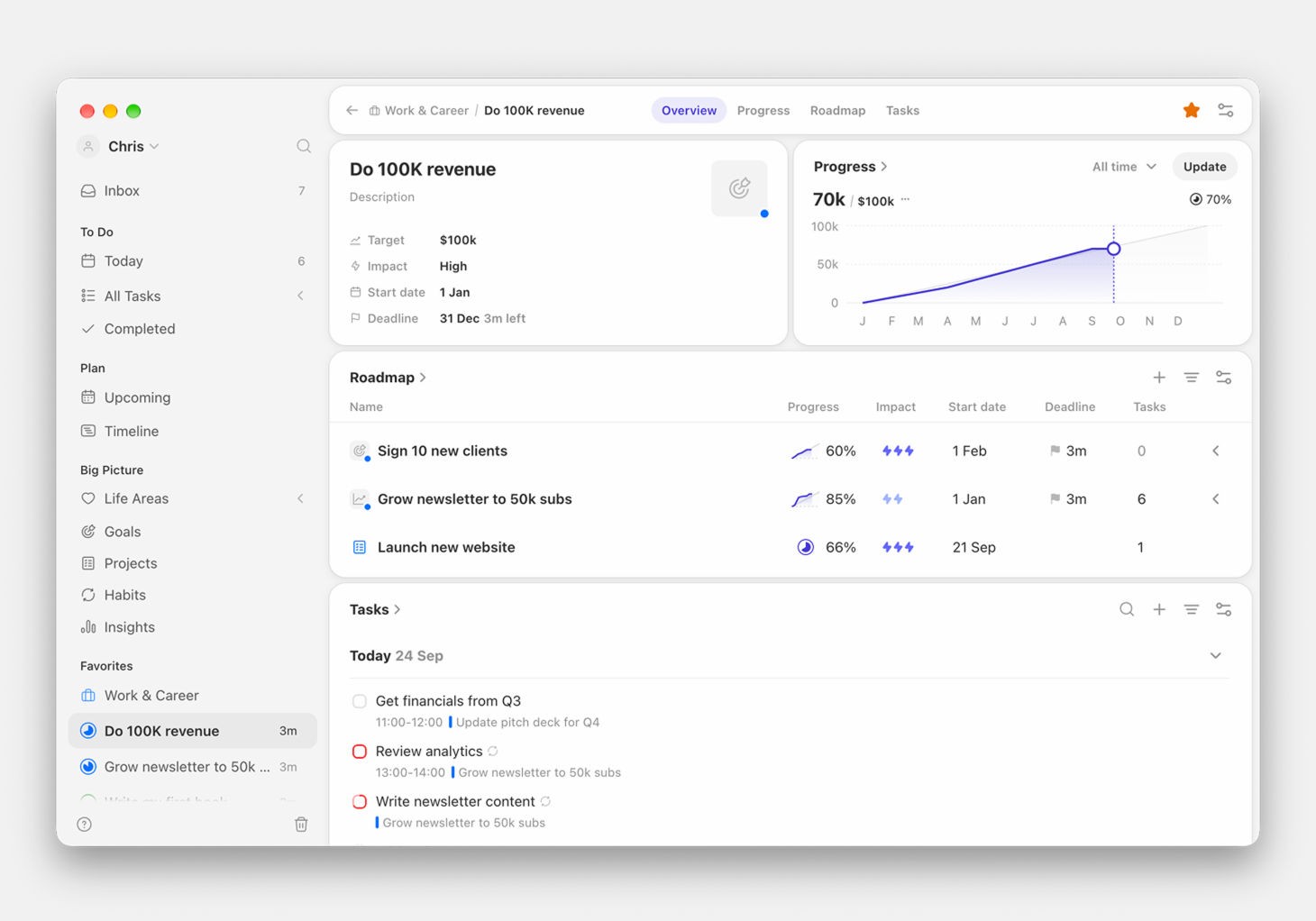
Big goals can feel overwhelming until you break them into smaller, trackable parts. Griply supports five breakdown types:
1. Subgoals
Subgoals are milestones within a goal.
To add a subgoal:
Open the goal detail view.
Scroll to the Subgoals section.
Click + Add subgoal, give it a title, set an optional metric, and add tasks or habits under it.
Example:
Goal: “Write my first eBook”
Subgoal 1: “Complete research”
Subgoal 2: “Write first draft”
Subgoal 3: “Prepare for publishing”
Pro tip: Subgoal metrics not only appear in the Insights Dashboard, but they’re also displayed directly inside the goal detail view with their own progress charts.
2. Projects
Projects group related tasks under a goal, with no metric of their own. They keep a chunk of work organized without changing the goal's number.
To add a project to a goal:
Open the goal detail view.
In the Roadmap, add a new project or link an existing one.
Example:
Goal: “Launch a new website”
Project: “Build the marketing site”
Project: “Set up analytics and tracking”
Learn more about projects.
3. Tasks
Tasks are single, one-off actions. Most of the time they live inside a project, breaking its work into steps, but a smaller goal can hold tasks directly without a project in between.
To add a task:
Open the goal detail view.
Scroll to the Tasks section.
Click + Add task, give it a name, and optionally set a due date or priority.
Example:
Goal: “Launch a new website”
Task: “Write homepage copy”
Task: “Send draft to designer”
Task: “Schedule final review meeting”
Learn more about creating and managing tasks.
4. Habits
Habits are recurring actions that build consistency.
To add a habit to a goal:
Open the goal detail view.
Go to the Habits section.
Click + Add habit, name it, and set the schedule.
Example:
Goal: “Run a marathon”
Habit: “Run 4 times per week”
Habit: “Stretch after every run”
Tip: Each habit has its own progress chart and can use a different metric than the main goal. You’ll find this inside the goal detail view.
Learn more about habits.
5. Sections
Use sections to break a long task list inside a goal or project into named groups, like Research, Production, and Launch.
Planning Your Goals
Deadlines
Start dates and deadlines aren’t just reminders, they’re visible across Griply in your Timeline, Upcoming calendar, and daily planning views. Setting clear timeframes keeps your goals realistic and helps you plan ahead.
Timeline
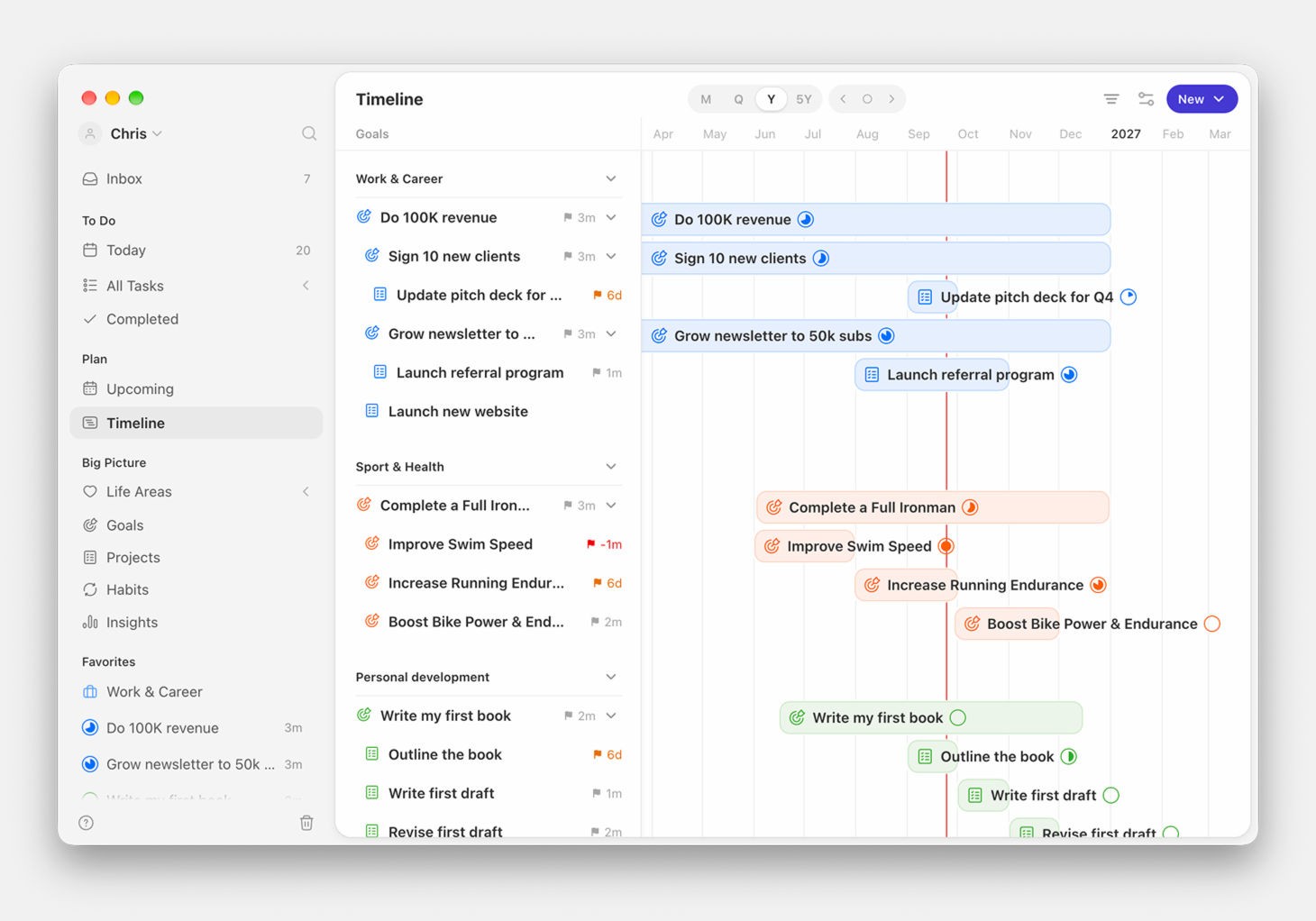
The Timeline is its own section in the sidebar, under Plan, showing every goal, subgoal, and project as a bar running from its start date to its deadline. It's where you see what overlaps and what you've stacked into the same few weeks, and you can drag a bar to reschedule a goal without opening it.
Zoom between month, quarter, year, and five-year ranges depending on your planning horizon. It's a premium feature.
See Timeline for the full guide.
Focus Blocks
A focus block reserves calendar time for a whole goal rather than for one task, so the hour belongs to the goal and you pick the work once you're in it. These were previously called goal timeblocks.
The quickest way to create one is to drag across an empty span on any calendar and pick Goal or Life area from the create menu. Clicking the block opens the goal with its linked tasks and subgoals.
A block can also point at a life area, a Smart List, or a tag.
Setting a Goal's Impact
Every goal carries an Impact level of High, Medium, or Low, describing how much it contributes to its life area, or how much a subgoal contributes to the goal above it.
Impact is what separates the goals that move your life from the ones that merely occupy it. Once set, you can filter tasks by goal impact anywhere in Griply, so a busy day full of low-impact work becomes visible rather than just felt.
Set it when you create a goal, or from the goal's edit dialog later. See Filters for filtering by it.
Organizing the Goals Screen
The Goals screen has controls for making a long list readable.
Grouping has three modes: none for a flat list, by life area for checking balance, and by deadline for quarterly sections that show what's coming due across every life area.
Filtering narrows by life areas, active goals, goal impact, start date, and deadline. Your filter is saved and re-applied the next time you open the screen.
Sorting by any column breaks ties by deadline, earliest first. Two High-impact goals appear with the more urgent one on top. Goals with no deadline sort after the ones that have one.
On Desktop you can edit progress, impact, start date, and deadline straight from the goal list without opening each goal. On iOS and Android the Goals screen is a card list with the same grouping, sorting, and filtering, and you can unfold a goal to see its subgoals without leaving the screen.
Editing & Managing Goals
Edit a Goal
Open the Goals tab → Click on a goal → Click the 3-dot menu (top-right) → Choose Edit goal. You can change the title, description, deadlines, success metric, or what it contributes to.
Favorite a Goal
Go to the Goals tab → Right-click a goal → Click Add to favorites. Favorited goals appear in the sidebar for quick access.
Duplicate a Goal
From the Goals tab or goal detail view → Click the 3-dot menu → Select Duplicate goal. This creates a full copy, including tasks and structure.
Complete a Goal
Open the goal detail view → Click the Complete goal button at the top. The goal moves to your completed list but remains visible in Insights.
You can complete a goal whether or not it hit its target, and Griply keeps the progress it actually reached rather than rounding up. A goal completed at 72% reads 72% everywhere afterwards, which is the honest record of where it landed.
Move a Goal
Right-click the goal → Move to, then pick a different life area, or another goal to nest it under. Nesting a goal under another goal makes it a subgoal; moving a subgoal out to a life area makes it a top-level goal again.
You can also change this from the goal’s Contributes to field in its edit dialog, without the separate Move step.
Archive a Goal
From the goal detail view → Click the 3-dot menu → Select Archive goal. Archived goals disappear from active views but stay stored.
Delete a Goal
Go to the Goals tab → Right-click the goal or open the 3-dot menu → Click Delete goal. Confirm your choice to permanently remove it.
Warning: Deleting a goal is permanent. Goals do not go to Trash and cannot be recovered. Tasks linked to the goal are not deleted, they just lose the link. Archive instead if you might want it back.
Pro Tips for Achieving Your Goals
Focus on fewer goals → Three to five active goals per timeframe keeps you sharp.
Link planning with goals → Use the Daily Planner and Weekly Planning to stay aligned.
Review weekly → Regular check-ins prevent drift. Use recurring reviews or habits to stay on top of progress.
Celebrate milestones → Subgoal completions are key motivation boosts.
Stay flexible → Life changes; goals evolve. Archive, adjust, or delete whenever needed.
Continue Reading
Didn’t find what you were looking for? We’re here to help! You can contact us anytime or ask your question in one of our communities.