Filters
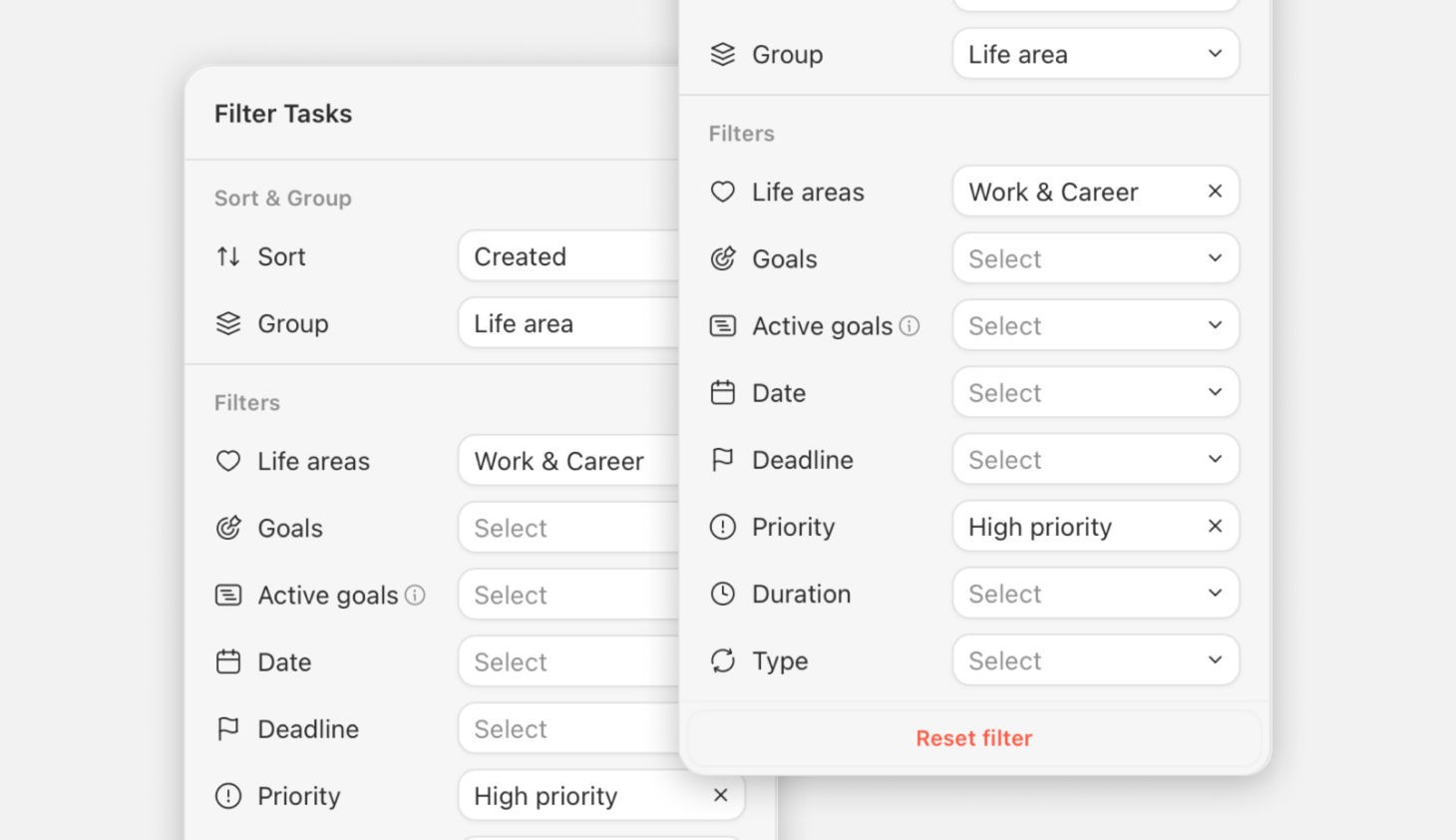
Griply’s filters help you cut through the noise and focus on exactly what you need to see. Whether you want to focus on your active goals for the month, see everything related to a specific life area, or find quick 10-minute tasks, filters give you the power to create custom views that match your workflow.
Filters work the same on Desktop, web, iOS, and Android. Every filter available on a screen on Desktop is available on that screen on iOS and Android.
Filter Your Tasks
To create a new filter view:
Go to the All Tasks page in the sidebar.
Click on the filter button in the top bar and select the criteria you want to apply.
Your view will automatically update to show only the tasks that match your selection.
Filter Types Explained
You can combine multiple criteria to narrow down your list. Here is a breakdown of the available filters:
Life Area
Focus on the big picture. This filter shows all tasks directly linked to a specific Life Area, as well as tasks from any Goals linked to that area.
No life area is available as an option, and it adds to your selection rather than narrowing it. Picking Fun & Relaxation together with No life area returns tasks in Fun & Relaxation or with no life area at all, which is how you review a life area alongside the loose ends that never got assigned to one.
Goals
See all tasks from selected goals. This includes tasks nested under any subgoals and in any projects linked to the goal, giving you a complete view of that goal’s work.
No goal works the same way as No life area: combine it with a specific goal and you get tasks from that goal or with no goal at all.
Goal Impact
Filter by the impact level set on the goal a task belongs to: High, Medium, or Low. This is the fastest way to see only the work that moves your most consequential goals, and to notice when a busy day is full of low-impact tasks.
See Goals for how impact is set.
Active Goals
This intelligent filter has been designed to automatically shows tasks from goals that are "active" within a specific time period. It’s the perfect way to see tasks based on your high-level planning in the Timeline.
How it works: A goal is considered active if its start date is on or before your chosen range and its deadline is on or after that range.
Dynamic Dates: You can select dynamic ranges like This Week, Next Week, This Month, This Quarter, or This Year.
⚠️ Important: Tasks will only appear for goals that have both a start date and a deadline set.
Example
If you pick “This week,” you'll see tasks from these goals:
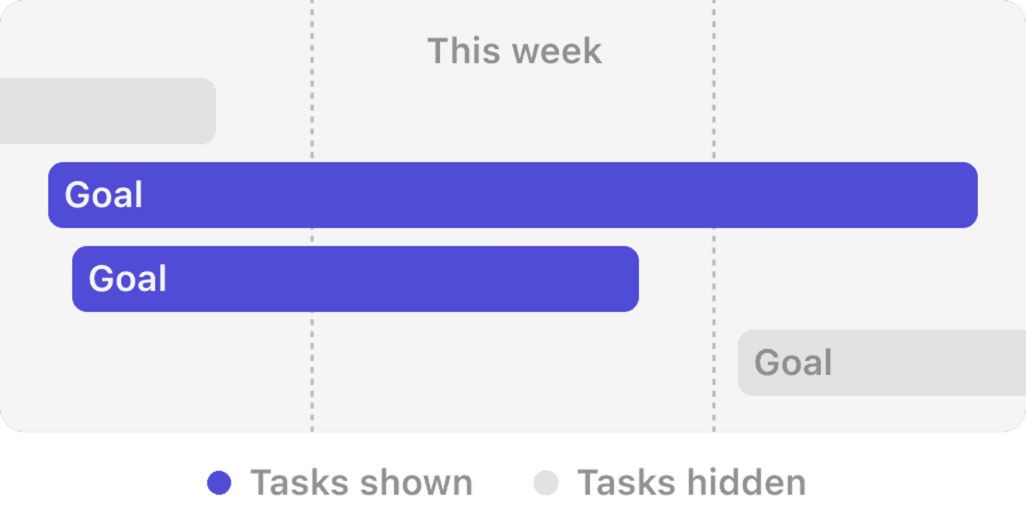
💡 Tip: Plan your goals on the Timeline, then apply the Active goals filter to see all current tasks. The Active goals filter updates automatically when the timeline changes.
Tags
Filter by tag, with a match mode that controls how several tags combine:
Mode | What you get |
|---|---|
Match any | Tasks carrying at least one of the selected tags. The default, and what you want for context-based views like everything tagged |
Match all | Tasks carrying every selected tag, for narrowing to an intersection like |
No tag | Tasks with no tags at all, which is how you find the ones that slipped through triage |
Date
Filter tasks based on when they are scheduled.
Dynamic Options: Quickly select This Week, This Month, etc.
Custom Range: Pick a specific start and end date.
No Date: You can also specifically filter for tasks that don’t have a scheduled date to find backlog items.
Deadline
Similar to the Date filter, but focuses on deadlines.
Dynamic Options: See deadlines for This Week, Next Month, etc.
No Deadline: Find open-ended tasks that might need a deadline.
Priority
Filter by urgency level: High, Medium, Low, or No Priority.
Duration
Find tasks that fit into your available time slots.
Range: See tasks that take between X and Y minutes.
Less than / More than: Filter for tasks shorter or longer than a specific time.
No duration / Has duration: Pull up every task you never gave a time estimate, or only the ones you did.
No duration and Has duration replace the less-than and more-than comparison rather than combining with it, so you're working with one duration mode at a time. That's different from the Life area and Goal filters, where the "No..." options add to your selection.
💡 Tip: Create a filter for tasks that take max 10 minutes. This creates a perfect list for when you have a few minutes to spare between meetings.
💡 Tip: Filter on No duration during a weekly review to catch the tasks you never estimated. They're the ones most likely to blow up a day.
Type
Distinguish between different kinds of activities. Filter to see only:
One-off tasks
Repeating tasks
Habits
💡 Tip: Filter by Repeating tasks to get a clear overview of your recurring tasks in one place without needing to go through the Upcoming list.
Grouping and Sorting
Filtering decides which tasks appear. Grouping and sorting decide how they're arranged, and they're set from the same top bar.
Group | What it does |
|---|---|
None | A flat list. Overdue items collect in their own section at the top. |
Goal | Groups by linked goal. Tasks linked through a subgoal or a linked project roll up to the goal above it. |
Life area | Groups by linked life area. |
Priority | High, Medium, Low, or None. |
Type | Splits tasks from habits. |
Tag | Groups by tag. A task with several tags appears once under each. |
Time of day | Splits the day into All Day, Morning, Afternoon, and Evening by start time. Today only. |
Sort options are Manual (your own drag order), Planned date, and Priority.
On Upcoming, grouping is fixed to planned date, because that grouping is the screen. Filtering narrows which tasks appear without disturbing it.
Time of Day on Today
Grouping by Time of day is built for planning your day in blocks. On Desktop, the inline create row inside each block inherits its context, so a task created in the Morning section starts with a morning start time. Dragging an overdue task onto Morning, Afternoon, or Evening sets its start time to the start of that block, and dropping it on All Day clears the start time.
How Items Are Ordered
Two rules apply regardless of your sort setting:
Timed tasks sort above all-day tasks within the same day, and the timed ones run in start-time order, so your day reads in the order you'll live it.
Completed items sink to the bottom of the all-day row on the calendar, so what's still open stays on top.
Seeing Completed Tasks
Upcoming has a Show completed tasks toggle, off by default. Turning it on shows completed tasks and completed habit occurrences inline in their day, month, or year groups, which is what makes a weekly review show the whole picture rather than half of it.
Clearing Filters
Reset filters in the filter panel clears every applied filter at once. It only touches filters, so the grouping and sorting you set up stay exactly as they were.
Where You Can Filter
Filters aren't limited to All Tasks. Today and Upcoming both offer the same set: life area, goal, active goals, goal impact, tag, duration, and priority. Today doesn't offer planned date or deadline filters, since it's already scoped to today.
Inbox keeps a deliberately small set for triage: priority, tag, and duration.
Once you've built a filter combination you want back, save it as a Smart List rather than rebuilding it each time.
Today deliberately leaves out the Planned date and Deadline filters. The screen is already scoped to today, so they'd have nothing to narrow.
Continue Reading
Didn’t find what you were looking for? We’re here to help! You can contact us anytime or ask your question in one of our communities.