3.53.0
-
Projects, a new "Contributes to" field, and planning from the Upcoming list


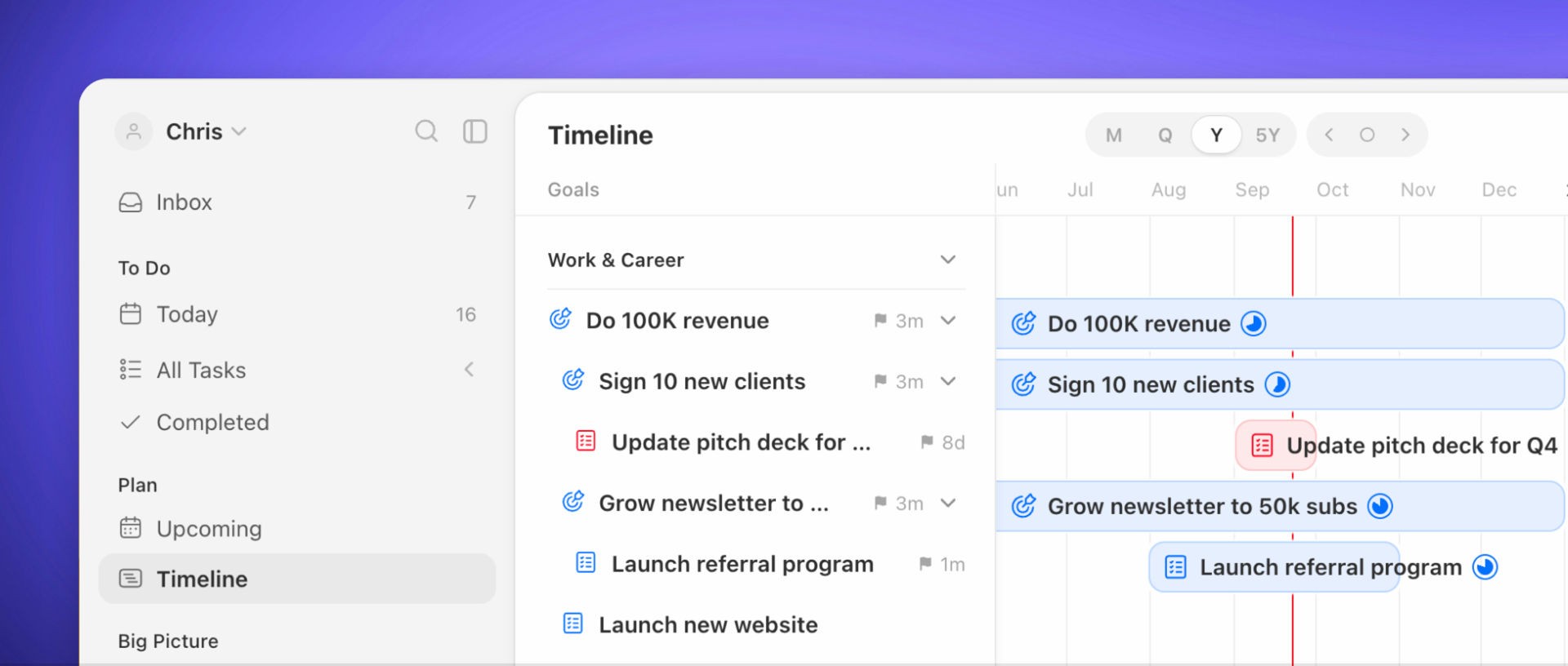

A lot of what you track as a goal is a list of tasks, like "Launch website" under "Reach €1M revenue". This release gives that work its own place: projects. Inside a goal, the "Roadmap" tab now lists subgoals and projects together and can switch to a timeline view. With the new "Contributes to" field, a goal, project or habit can link to more than one goal or life area at the same time. Upcoming and Timeline moved together under a new "Plan" section, and on Desktop you can plan your week from the Upcoming list by dragging tasks onto days.
Features
Projects: With Projects, your work gets its own place in Griply. Rule of thumb: a goal is a measurable outcome that marks progress; a project is a list of tasks that moves the goal forward. "Reach €1M revenue" is a goal and "Launch website" is a project under it: if finishing every task means you're done, it's a project. Read Projects in Griply for when to use which.
Turn a goal into a project: Have a goal that is really a task list? Right-click it, and turn it into a project.
Contributes to: Link a goal, project or habit to every goal or life area it contribute to so you see exactly WHY it is important.
Plan tasks from the Upcoming list (Desktop): Click "Plan tasks" in the Upcoming list view to open your tasks in a column on the right, then drag each one onto a day.
Improvements
Plan section: Upcoming and Timeline now sit together under "Plan", in the sidebar on Desktop and in the "To do" tab on iOS.
Goals and projects on the Timeline: The Timeline under "Plan" now maps your projects alongside your goals, side by side over time.
Goal deadlines in Upcoming: A goal's deadline shows up in the Upcoming list on the day it's due.
Add to a day from Upcoming (Desktop): Hit "+" next to a day in the Upcoming list to add a task, calendar event or focus block.
Timeline polish (Desktop): Weekends are shaded in the month and quarter views, today sits in the middle of the view at every zoom level, and drop zones are clearer while you drag and reorder.
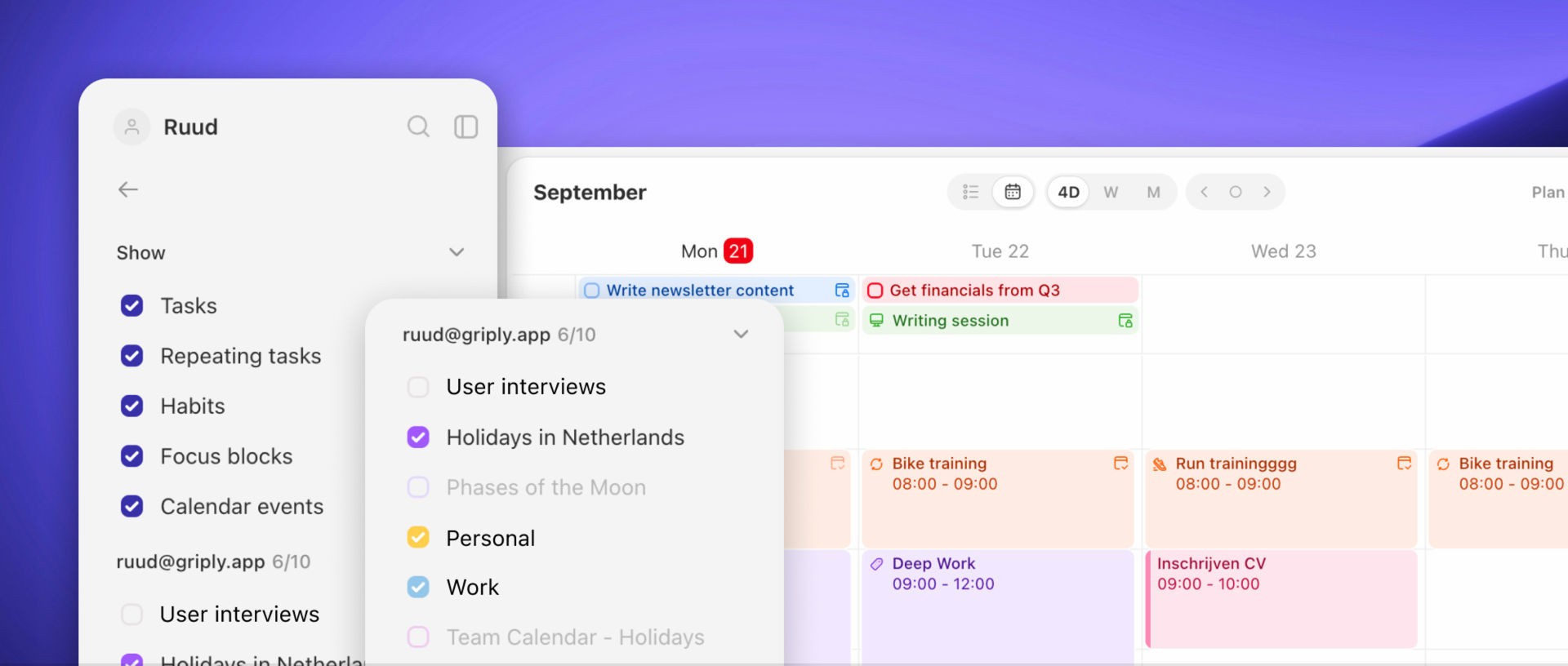
Show or hide what's on the calendar (Desktop): Open the calendar and a menu appears to show or hide what's on it in one click.
Trash moved out of the main list: On Desktop, Trash is now the icon at the bottom right of the sidebar. On iOS, it's the trash icon at the top of the "To do" tab.
Habits with an ended schedule: A habit past its end date shows "Ended on" and the date, in the habit list and in its details. On Desktop, the habit's "Upcoming" tab reads "No active schedule" with a button straight to its settings.
Fixes
Fixed subtasks showing up in search
Android: Support for AM/PM in time picker
Desktop: Subtasks are now reordered via the drag handles on the right so the text itself can be selected by dragging.